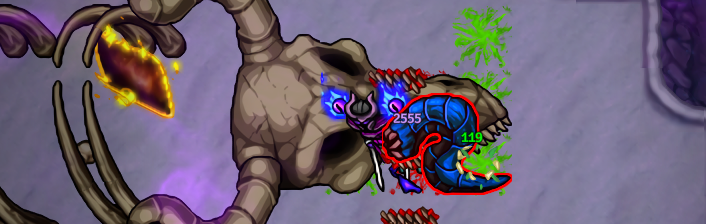
Recent death: Paspatuuh (400, Pendulum), killed by a blood sphinx.
  • IMMERSIVE EFFECTS
  • LEGENDARY ITEMS
  • ELITE MONSTERS
  • LISTEN & RELAX
  • ULTIMATE BOSSES
  • DUNGEONS
  • THE GATE AWAITS
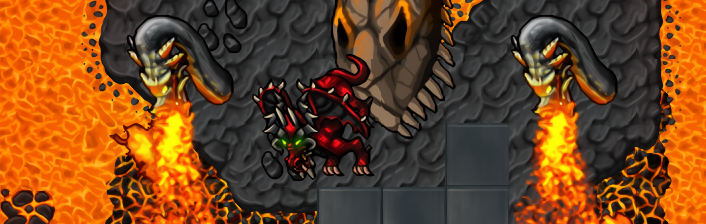
  • YOUR FIRST DRAGON
  • EPIC QUESTS
  • DEMONS ARE WAITING
  • BECOME THE STRONGEST
  • MYSTERIES AWAIT
  • FACE THE CHAOS
  • UNDERWATER
  • ABOVE THE SKY
  • WEATHER SYSTEM
Download
Windows (7 or newer)
The full installer for Windows. Download it, run it and follow the few steps of the setup wizard — the game gets installed, the shortcuts are created and the client keeps itself patched to the latest version on every launch, so you are back in Medivia within a couple of minutes.
Minimum requirements
Operating system:
Windows 7 or newer
Processor:
64-bit processor with multiple cores
Graphics:
GTX 260 or better, 512 MB of VRAM, DirectX 10 & Shader Model 4.0
Memory:
8 GB of RAM
Disk space:
At least 4 GB of free space
Recommended requirements
Operating system:
Windows 10 or 11
Processor:
Quad-core processor (Intel Core i5-4670 class or better)
Graphics:
DirectX 11 GPU (feature level 11_0) with 2 GB of VRAM — dedicated graphics recommended for HD sprites
Memory:
8 GB of RAM
Disk space:
6 GB of free space on an SSD
Reference machine — steady 60 FPS at 1920 x 1080
Operating system:
Windows 10
Processor:
Intel Core i5-4670 (released in Q2'13)
Graphics:
Intel HD Graphics 4600 (no dedicated graphics card)
Memory:
8 GB DDR3 RAM
This modest machine keeps a steady 60 FPS on Full HD with every audio and shader effect enabled — and any dedicated graphics card would boost its performance significantly.
!
Keep vertical synchronization enabled in the Graphics settings, so the frame rate stays locked to your monitor's refresh rate — disable it only if you are certain of what you are doing. A GPU pushed to 100% utilization runs into its TDP limits and throttles, turning smooth play into a stutter.
Download x86_64
macOS (10.15 Catalina or higher)
The complete game bundle for Apple macOS, built as a universal app for both Apple Silicon and Intel Macs. Unpack the downloaded archive, move the app into Applications and you are ready to play — from then on the client keeps itself up to date.
!
After downloading, unpack the archive and drag Medivia Online into the Applications folder: open Finder, click Downloads in the sidebar, then drag the app onto Applications in that same sidebar. The client can only update itself from inside Applications — started from Downloads or the desktop instead, it moves itself into Applications on the first launch and restarts from there.
!
macOS blocks the first launch of Medivia Online because the app is not signed by an identified developer. To open it anyway:
1. Double-click Medivia Online and dismiss the warning — this first blocked attempt tells macOS you want to run the app.
2. Open System Settings → Privacy & Security, scroll down to the Security section and click Open Anyway next to the message that Medivia Online was blocked, then confirm.
On macOS 14 Sonoma or older you can instead Control-click (or right-click) the app in Finder and choose Open; if the dialog has no Open button, close it and repeat right-click → Open once more. From macOS 15 Sequoia on this shortcut no longer exists, so use System Settings as described above.
Once the app has opened this way a single time, every later launch works like any other app.
Download ARM64 x86_64
We use cookies to improve your experience on our website. By browsing this website, you agree to our use of cookies.
OK
Loading... Loading...